Win32 Disk Imager old versions can be useful when you are working with an older Windows computer or need to revisit a previous setup. This page brings the available releases together, so you can choose the version and package you need.
The table above includes versions 0.9.5, 0.9, 0.8, 0.7 and 0.6. All download links serve the files directly from this website. Version 0.9.5 has an installer; earlier versions are supplied as ZIP archives.
What Is Win32 Disk Imager?
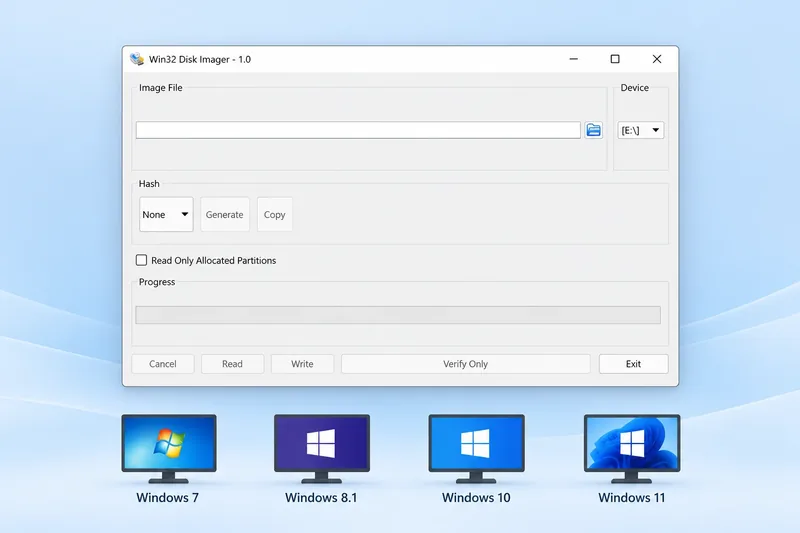
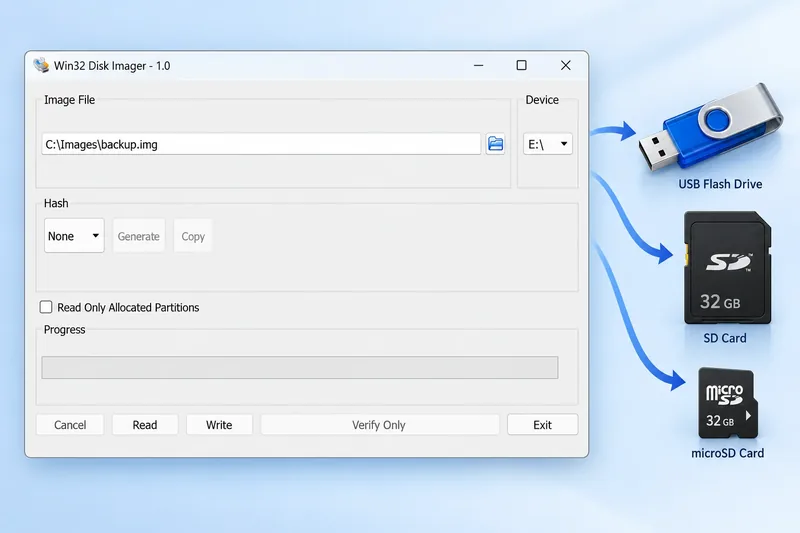
Win32 Disk Imager is a free Windows application for reading and writing raw disk images. Instead of copying individual files, it works with an image of a storage device. This is useful when you want to save the contents of an SD card or transfer an existing image to removable storage.
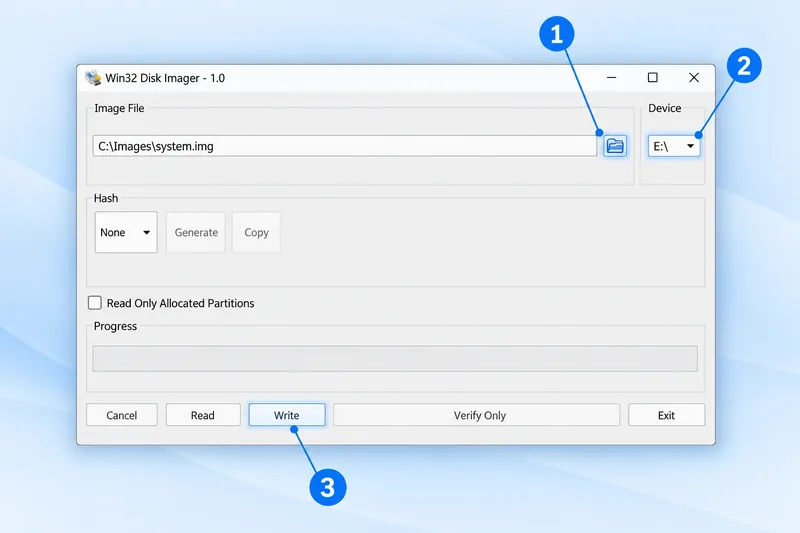
The main window keeps the process simple. You choose an image file, select a device and decide whether to read or write. You do not need to learn a long list of commands to carry out these basic tasks.
Why Keep an Earlier Release?
Win32 Disk Imager old versions give you a way to return to a familiar release when working with an existing setup. Perhaps you have notes from an earlier project, or you want to use the same package on the same computer again. Keeping the version number makes that choice easier.
However, the package and the image file serve different purposes. The download opens the imaging application, while your image contains the data you want to save or write. Keep both clearly labelled so you can find the right files later.
Understand Read and Write Before Using It
Read creates an image file from the device you select. Write takes an existing image and transfers it to that device. These actions go in opposite directions, so take a moment to check which one fits your task before pressing a button.
For example, read a card when you want to keep a backup of its current contents. Write an image when you want to put that image onto a card. An older release still needs the same careful device selection. Check the drive letter and keep your backup somewhere separate from the device you are working on.
Which Version Should You Choose?
For a current download, start with version 1.0.0. The project documents that release for Windows 7, 8.1 and 10. Its compatibility notes direct Windows XP and Vista users to version 0.9. Check your Windows version before choosing a package.
An older release may behave differently from a newer one. Keep a copy of important data before using any disk-writing tool, and always confirm the destination device.
Installer, Portable ZIP or Source?
- Installer: the Windows setup file for installing the application.
- Portable ZIP: the application and its supporting files in an archive. Extract the complete folder before opening it.
- Source: the project’s source files. This is for working with the code, rather than opening the application directly.
How to Use an Older Release
- Choose the version and package from the table.
- For an installer, open the downloaded setup file and follow its instructions.
- For a portable ZIP, extract all the files into a folder.
- Connect your USB drive or SD card and open the application.
- Select the correct image file and device before using Read or Write.
Before You Download an Older Version
Do you already have a version that works with your setup? Start by checking its version number, so you can pick the same release from the list. An older download is useful when you need to repeat a previous setup, but it does not automatically solve every problem with a USB drive or SD card.
If the application cannot see your device, first check whether Windows recognises it. Try reconnecting the card reader and check the drive letter. Changing software versions will not help if the computer cannot access the device in the first place.
Keep Your Image and Download Together
When you save an older installer or ZIP, give its folder a clear name with the version number. Keep any notes about the device and image alongside it. This makes it easier to return to the same setup later without guessing which package you used.
You can also keep the original download rather than replacing it each time. The archive table separates application packages from source files, so choose the installer or portable ZIP when you want to run the software.
Frequently Asked Questions
Can I download an old version without leaving this site?
Yes. The installer, portable and source links in the table are local downloads.
Do all versions have an installer?
No. This archive has setup installers for 1.0.0 and 0.9.5. Versions 0.9, 0.8, 0.7 and 0.6 are available as binary ZIP packages.
Where is the latest Windows installer?
You can download version 1.0.0 below, or use the Download button on the homepage.
Download Latest Windows Version