Older Portable Versions
| Version | Downloads |
|---|---|
| 0.9.5 | Portable ZIP (17.44 MB) |
| 0.9 | Portable ZIP (5.41 MB) |
| 0.8 | Portable ZIP (5.68 MB) |
| 0.7 | Portable ZIP (5.68 MB) |
| 0.6 | Portable ZIP (5.40 MB) |
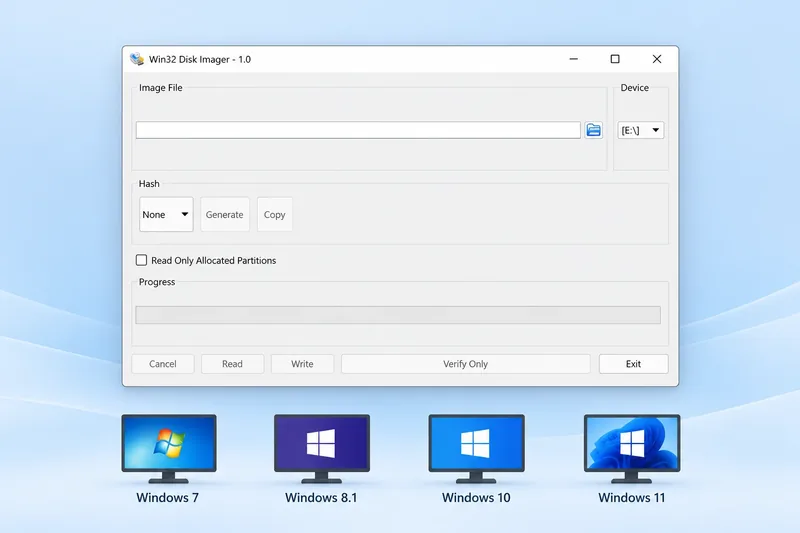
Win32 Disk Imager Portable is the ZIP package of the Windows disk imaging application. It lets you use the program from an extracted folder instead of running the setup installer. You still need its included support files, so keep the package together.
What Does Win32 Disk Imager Do?
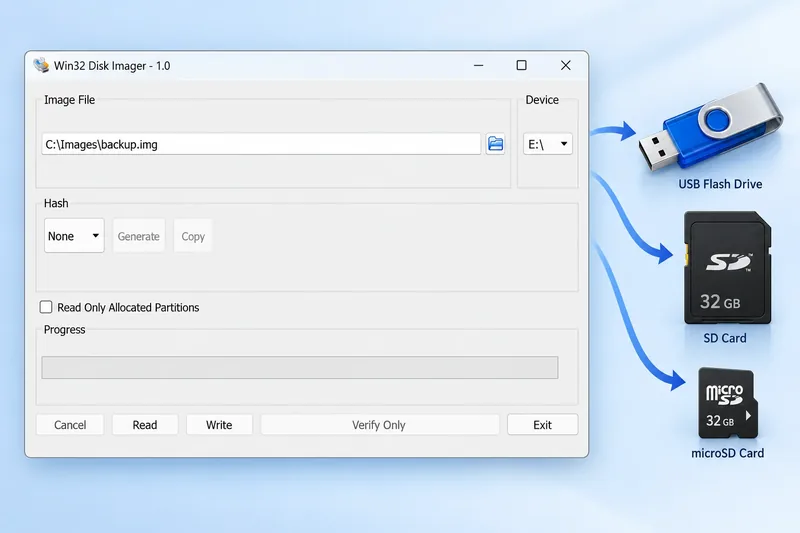
Win32 Disk Imager is a free disk imaging application for Windows. It helps you save a removable device as an image file or write an existing image back to a device. People use it when working with USB drives and SD cards, especially when a simple file copy is not the task they need.
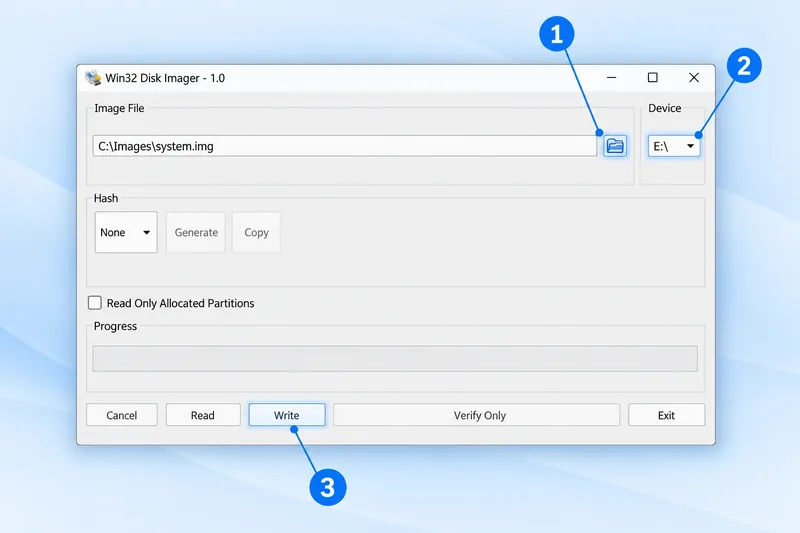
The interface centres on an image file and a selected device. Read and Write let you choose the direction of the transfer. Understanding those two controls is a useful starting point, whether you download the installer or the portable package.
How the Portable Version Fits Your Workflow
Win32 Disk Imager Portable is useful if you prefer to organise your tools in folders. After extraction, you can keep the application beside your project notes and open it when needed. The image files themselves can stay in another location with enough available storage.
For example, you might keep one folder for the application and another for backups of your SD cards. Give each backup a name that tells you which card it belongs to. That makes choosing an image easier when you return to a project after some time.
A Simple Example of Using an Image
Suppose you have an SD card set up for a project and want to save its current contents. Connect it to your Windows computer, choose a location for the image file and use Read. The resulting image becomes the file you keep for that backup.
Later, you can select a suitable destination device and use Write with your saved image. The portable package performs these tasks from its extracted folder. Before starting, check the image path and drive letter again, and allow the operation to finish before disconnecting the card. Keeping the application portable does not change these basic steps.
Download Win32 Disk Imager Portable
The portable version 1.0.0 is available as a binary ZIP. Download the archive, extract it fully and open Win32DiskImager.exe from the extracted folder.
Download Portable 1.0.0 ZIPWhat Is Included in the Portable ZIP?
The package contains the application, Qt libraries, a platforms folder, translations, documentation and license files. These files work together. Copying just the EXE into another folder can leave the program without a required dependency.
How to Run Win32 Disk Imager Portable
- Download the portable ZIP using the button above.
- Right-click the ZIP in Windows and choose Extract All.
- Keep the extracted application and its folders together.
- Open Win32DiskImager.exe from that folder.
- If Windows requires elevated access to the device, run the application as administrator.
- Connect your removable device and check its drive letter before starting an operation.
Read, Write and Verify
Create a Backup with Read
Choose a destination filename on your computer and select the removable device. Read saves the device contents into an image file. Leave enough free space for the backup.
Transfer an Image with Write
Select the raw image and the destination USB drive or SD card. Write replaces data on the selected device, so check the drive letter before confirming.
Check the Contents with Verify Only
In version 1.0.0, select the image file and its corresponding device, then use Verify Only to compare their contents.
Portable ZIP or Installer?
Choose the ZIP if you prefer to keep the application in a folder without using the setup wizard. Choose the installer if you want the normal Windows installation process. Both packages are for Windows; a portable ZIP is not an Android app.
Keep the Portable Folder Ready to Use
Once you have extracted the ZIP, you can keep the folder somewhere easy to find. A clearly named folder is helpful if you use more than one release. When moving it to another location, move the whole folder, including the supporting libraries and subfolders.
The portable package saves you from going through the setup wizard, but it still runs as a Windows application. It does not change the way Read or Write works, and it does not remove the need to choose the correct device.
Check These Details Before You Start
Before writing an image, check that you have extracted the image file as well as the application ZIP. Then look at the Image File field and the Device list. If you have connected several removable drives, disconnecting the ones you do not need can make selection easier.
For a backup, choose a filename and location you can recognise later. Save it to your computer or another suitable drive, rather than the card you are reading. Wait until the operation finishes before removing the device.
Frequently Asked Questions
Can I run the program from inside the ZIP?
Extract the entire package first. Running only an EXE from the archive can prevent it from finding the other files it needs.
Does portable mean it works without administrator access?
No. Portable describes how the application is packaged. Windows may still require elevated access when reading or writing a device.
Where can I find other releases?
Visit Win32 Disk Imager Old Versions for the full local archive.