


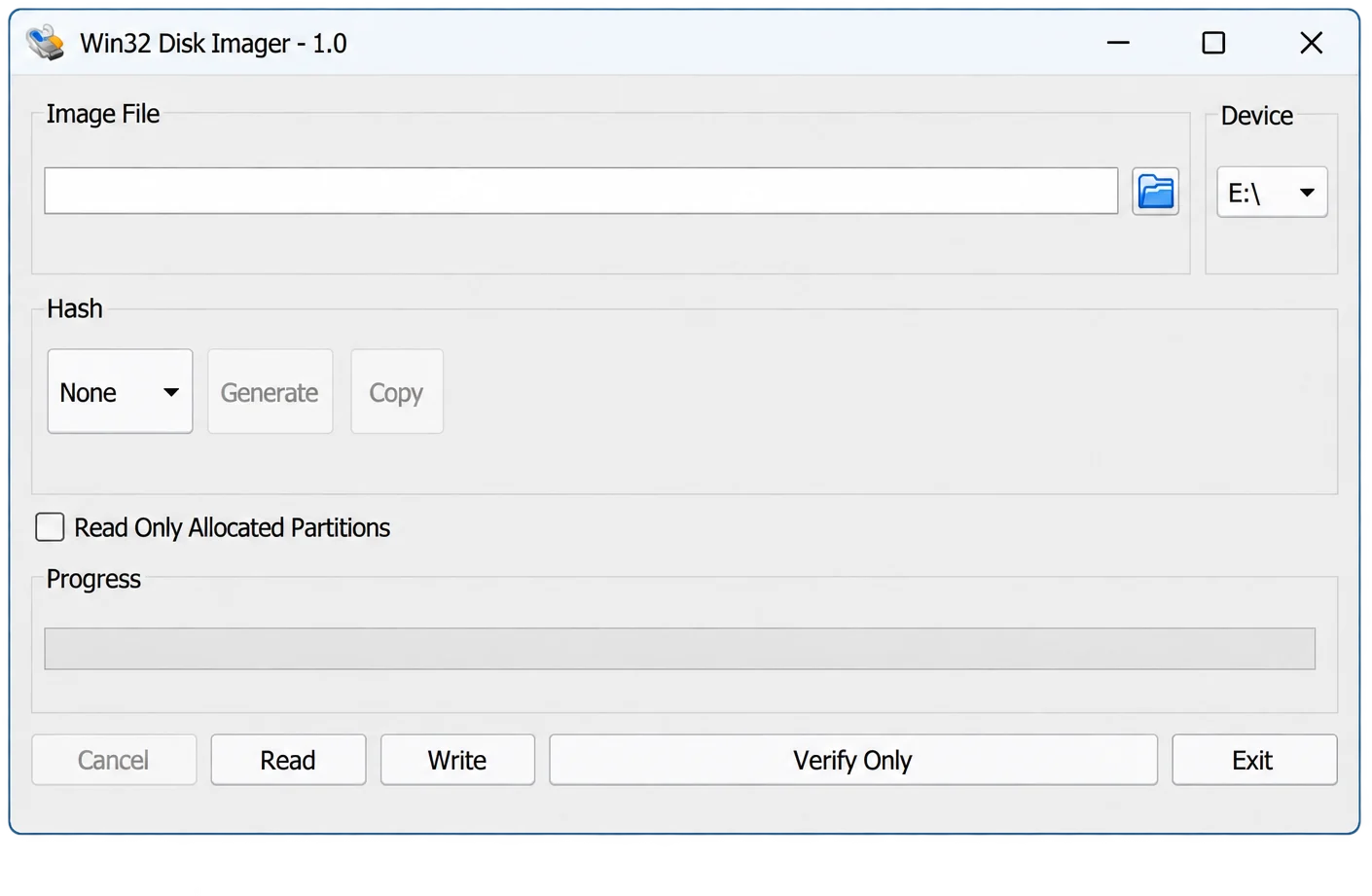
Have you ever tried to create a bootable USB or back up your data on an SD card? But, you only find a lot of hectic steps, errors, failed tools, and more. If yes! Then you must use the Win32 Disk Imager software.
It is an open-source software which is designed for Windows users. It is a fast and reliable option to read and write disk image files on removable devices.
Basically, this lightweight app helps to simplify tasks that often feel technical and frustrating. In addition, you can also use it for Raspberry Pi, recovering data, or flashing an OS image.
In this guide, we will explore the benefits and steps to install the Win32 Imager for Windows 11, 10, 8, and 7. So keep reading!
What is the Win32 Disk Imager?
Win32 Disk Imager is free and open source Windows software, developed by the ImageWriter Team. People who need accurate backups, bootable media, or system-level control of storage devices use this tool.
This is because it efficiently reads and writes raw disk image files to USB drives and SD cards.
So, you can smartly back up essential data and restore system images with precision. Additionally, it has a simple interface, which makes it easy to use for everyone.
Features of Win32 Disk Imager
Here are some unique features of the Win32 disk image software. You must explore all these features to get the maximum benefit.
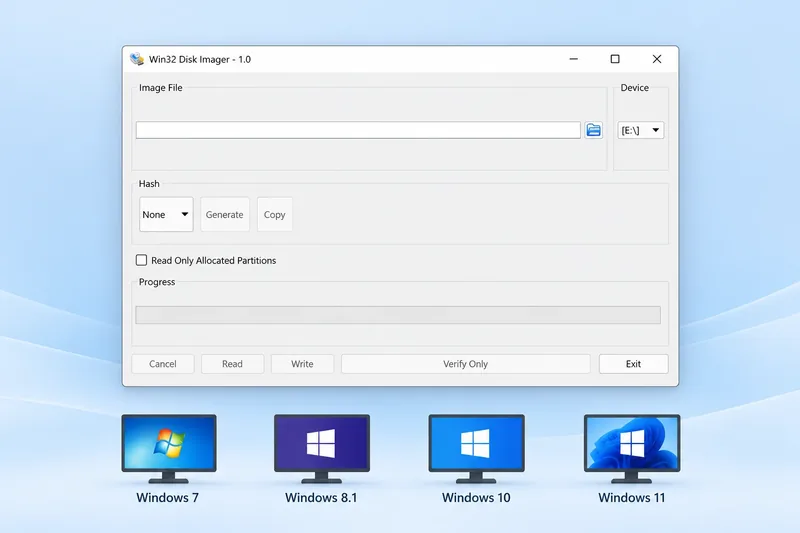
Wide Compatibility
One of the best features of Win32 is that it is compatible with multiple Windows versions. You can easily install it on Windows 7,8,9,10, or 11 and perform your work easily.
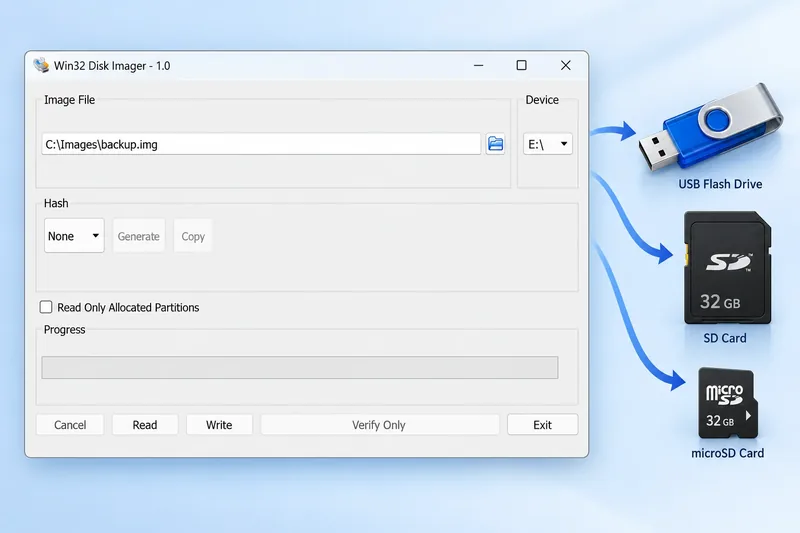
Supports Multiple Storage Devices
It also works with multiple storage devices. Like, you can read and write image files easily on USB flash drives, SD cards, and other removable media. It removes the need to install and use different apps or software.
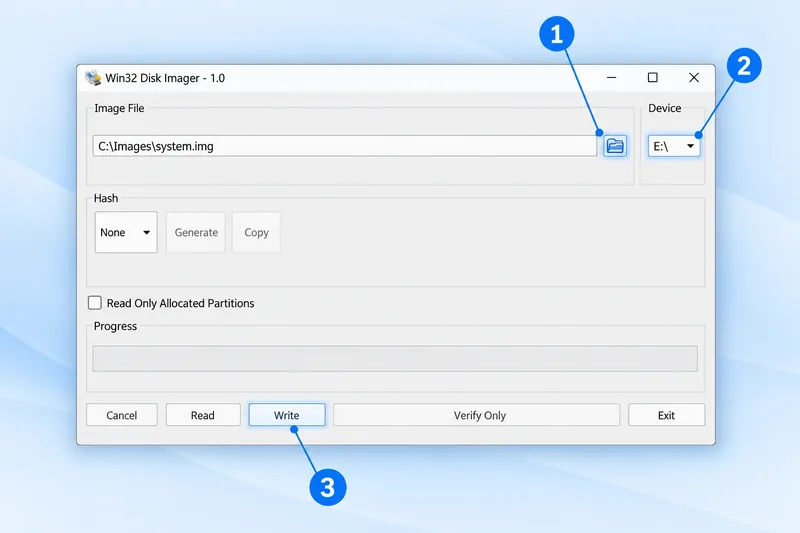
User-Friendly Interface
Win32 has a simple and intuitive interface, which makes it easy to use even for beginners. You can smoothly create and restore disk image files without any complex steps.
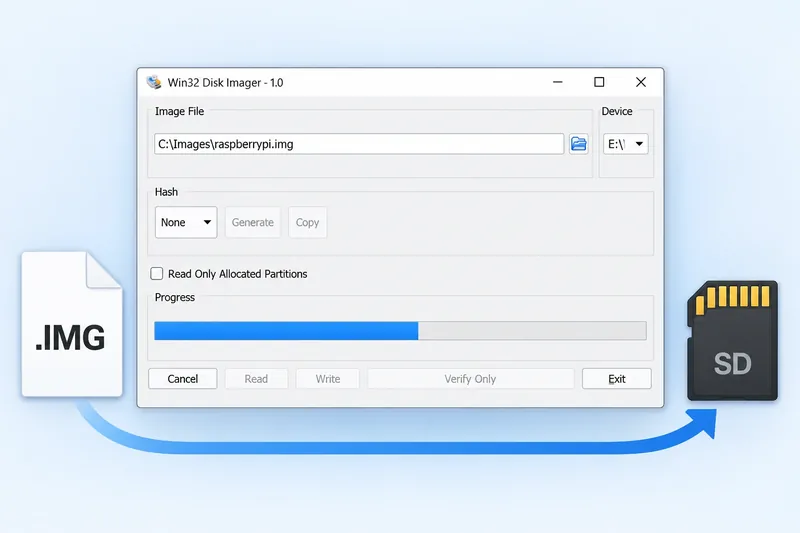
Process Raw Disk Images
It helps in reading and writing IMG files to USB drives and SD cards quickly. So, all your data is safely and effortlessly stored on different devices.
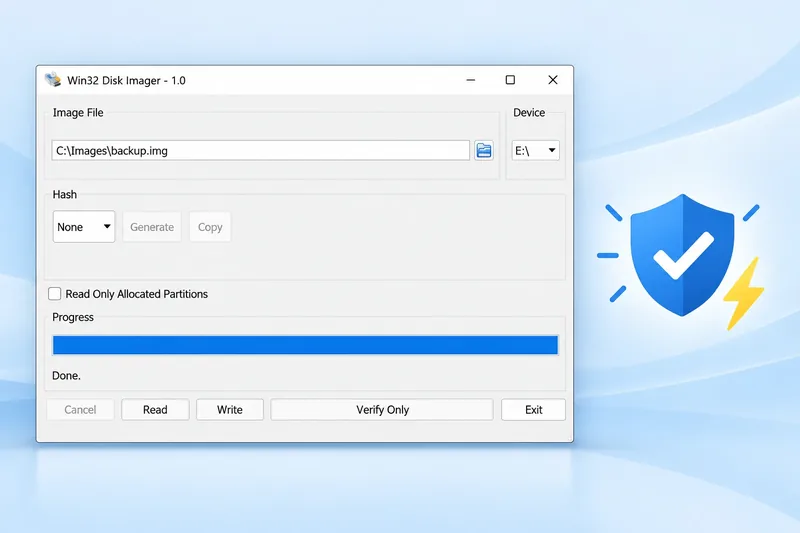
Better Performance
It is a lightweight app, so it consumes less storage space on your devices. This feature improves its performance and helps to efficiently perform disk imaging tasks.
Download Links of Win32 Disk Imager
Here is a download link for Win32 Imager. You can click on the download link and easily install it on Windows 11, 10, 8, and 7 to create bootable drives and back up SD cards.
Download for WindowsHow to Install Win32 Disk Imager on Windows?
You can download the Win32 Disk Imager easily on your Windows PC. The steps are simple and easy, so everyone can easily install the tool.
- First of all, you should download the setup file on your device. So, get the latest version of the Win32 Imager installer from a trusted website.
- Now, right-click on the download file and select “Run as administrator” for proper installation.
- Now, from the open window, click on the “Next” button and then select the installation folder.
- Next, complete the installation setup.
- Lastly, open the Win32 imager and start creating and restoring disk images.
System Requirements to Install Win32 on Windows
Before installing the Win32 Disk Imager, you should ensure that you meet the system requirements to ensure a smooth installation process.
| Requirement | Details |
|---|---|
| Operating System | Windows 11, 10, 8 / 8.1, 7 |
| Processor | 1 GHz or faster |
| RAM | Minimum 512 MB |
| Storage Space | At least 10 MB free space |
| Administrator Access | Required for installation |
| Supported Devices | USB drives, SD cards, and other removable media |
How to Use a Win32 Disk Imager?
Follow these steps to use Win32 for restoring disk images.
Write an Image to USB or SD Card
- You should connect a USB drive or an SD card to your PC. Now, open the Win32 Imager and click on the folder icon to select the .img file you want to write.
- Next, choose the device from the devices menu option.
- Next, click on the “write” option and wait for the process completion.
Create a Backup Image
- Now, insert the USB drive or SD card you want to back up.
- Now, open the Win32 and select the destination path for the backup of the .img file.
- Select the device and click on the read option to create a backup.
Win32 Disk Imager for Raspberry Pi
All Raspberry Pi enthusiasts use the Win32 Imager tool for backing up their critical data. They use it to transfer operating system images to an SD card.
Basically, it allows you to write Raspberry Pi OS or other OS images directly to your SD card, which helps in creating a bootable device within seconds. This software on a Raspberry Pi ensures that your images are copied accurately and safely. It also helps to avoid data corruption and loss.
Alternatives to Win32 Disk Imager
Besides Win32 disk images, you can also try its alternative softwares for creating successful bootable media or backing up storage devices. Some of the Win32 alternatives are mentioned below:
- Rufus
- Balena Etcher
- UNetbootin
- WinToUSB
- DD For Windows
- USB Image Tool
- ApplePi-Baker